How to Shrink wide messages to fill the screen (gmail)

Posted by Unknown Sabtu, 11 Mei 2013 0 komentar
Shrink wide Gmail messages to fit your Android screen Gmail for Android tip: Shrink wide messages to fill the screen

Ever find yourself swiping back and forth on your Android display just to read a sentence in a Gmail message? Annoying, right?
That’s because Gmail for Android zooms in a bit on some email messages—mainly those with large images, banners, or other graphics—so they’re easier to read.
The only problem with the zoomed messages, though, is that the actual text tends to spill off the side of the screen, meaning you’ll need to swipe to back and forth to complete a sentence.

Gmail for Android auto fit setting 300x189 Gmail for Android tip: Shrink wide messages to fill the screen
You can set Gmail for Android to automatically shrink wide messages to fill the screen.

Want to save yourself the trouble? All you have to do is tweak a single setting.
  • Open Gmail on your Android phone, tap the three-dot Menu button in the bottom-right corner of the page, tap Settings, then tap General Settings.
  • Near the bottom of the screen, tap checkbox next to the “Auto-fit messages” setting.
Now, go back and open a few Gmail message—and when you do, you’ll notice that the width of each message fills the screen, no swiping required.
Of course, shrinking your Gmail messages to fit the screen may result in teeny, tiny text—but if that happens, you can always “pinch” the screen to zoom in.
Sure, you’re swiping again, but at least you won’t have to swipe unless you really need to.
From heresthethingblog.com
How to Shrink wide messages to fill the screen (gmail)

Baca Selengkapnya ....

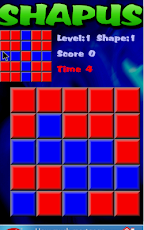
Shapus

Posted by Unknown Jumat, 10 Mei 2013 0 komentar
Just match the pattern!


Baca Selengkapnya ....

Gestalt-X

Posted by Unknown 0 komentar
Very original and visually appealing 3d puzzle game.


Baca Selengkapnya ....

How to completely turn off an app’s notifications

Posted by Unknown Kamis, 09 Mei 2013 0 komentar
How to completely turn off iPhone notifications iPhone/iPad tip: How to completely turn off an apps notificationsSo, you thought you turned off the notifications for an iPhone or iPad app, but it’s still bugging you with unwanted banners, beeps and badges. What gives?
Well, just because you switched an app’s “Alert style” setting to “none” doesn’t mean you’ve turned off all of its alerts.
There are, in fact, a few more notification settings that need tweaking—and if you don’t, expect more messages on your iPhone’s “lock” screen, red badges on your home screen, and blaring alert tones when you least expect them.
iPhone notification settings 300x255 iPhone/iPad tip: How to completely turn off an apps notifications
Make sure you don’t miss these options when tweaking your iPhone’s notification settings.
Read on for three notification settings that are easy to miss, starting with…

1. Lock-screen notifications

Even if you diligently turn off all the other alerts for a given app, the app may still flash alert banners on your iPhone’s (or iPad’s) “lock” screen from time to time.
Related tip: What’s the difference between an alert, a banner, and a badge?
Want to banish the banners for good?
  • Tap Settings, Notifications, then scroll down and tap the name of the offending app.
  • Scroll down again until you see the “View in Lock Screen” setting, and make sure it’s switched off.

2. Red app badges

Seeing lots of little red badges stuck to the apps on your iPhone’s home screen?
Those numbered alerts are there to notify you of…well, just about anything, from an unread email message to a nagging reminder that you haven’t played “Words With Friends” for a month.
How to get rid of the red badges on your iPhone apps 300x192 iPhone/iPad tip: How to completely turn off an apps notifications
Had enough of these nagging little red badges? You can turn them off in just a few taps.

If there’s a specific red badge that’s driving you particularly batty, you can turn it off in just a few taps.
  • Again, tap Settings, Notifications, and tap the name of the app that’s flashing an unwanted badge.
  • Scroll down once more, then switch off the “Badge App Icon” setting.

3. Sound alerts

You set your iPhone to “silent” for an important company meeting, only to hear an embarrassingly loud “beep!” coming from your pocket right in the middle of your boss’s presentation. Ack!
Yep, the alert tones for some iPhone apps may still sound off even when your handset’s ringer switch is off. Annoying, right?
To shush an app’s alert tones, just…
  • You guessed it—head back to the iPhone’s Notifications settings (Settings, Notifications) and tap the app you want to silence.
  • Scroll down until you get to the “Sound” setting and switch it off—or, if there’s a choice of alert tones, make sure it’s set to “None.”

Bonus tip

You can temporarily silence all iPhone notifications and calls by turning on the “Do Not Disturb” mode.
iOS Do Not Disturb mode 300x170 iPhone/iPad tip: How to completely turn off an apps notifications
You can get a temporary break from iPhone notifications thanks to the “Do Not Disturb” setting.

Tap Settings, then flip the switch next to “Do Not Disturb,” or tap Settings, Notifications, Do Not Disturb to schedule a daily quiet period.
Keep in mind, though, that Do Not Disturb will only block notifications while your iPhone is locked—and don’t forget to switch it back off when you’re ready to get calls again.
source http://heresthethingblog.com
How to completely turn off an app’s notifications

Baca Selengkapnya ....

Cube Defender Lite

Posted by Unknown 0 komentar
Cool shoot em up game!


Baca Selengkapnya ....

Liquid Wars free

Posted by Unknown Rabu, 08 Mei 2013 0 komentar
And excellent port of the Linux game!


Baca Selengkapnya ....

View your timeline as others see it

Posted by Unknown 0 komentar
View your Facebook timeline as others see it Facebook tip: View your timeline as others see itNo matter how carefully you’ve checked your Facebook privacy settings, it can still be an eye-opener to see how your timeline looks to everyone else on Facebook—friends and strangers alike.
Facebook’s “View As” feature not only lets you see how the world sees your timeline, it can also show you how your timeline looks through the eyes of a specific friend.
It’s a handy way to see, for example, whether your updates, photo albums, and friends are viewable by complete strangers—or, say, a Facebook frenemy on your “Restricted” list.
Facebook timeline view as setting Facebook tip: View your timeline as others see it
Click the gear icon and select “View As” to see your timeline as others see it.
Here’s what you do…
  • Go to your timeline by clicking your name in the top-right corner of any Facebook page. Next, click the little gear icon in the bottom-right corner of your “cover” photo, then select “View As” from the drop-down menu.
  • You should now see your timeline as most people on Facebook see it—that is, anyone on Facebook who isn’t your friend. See anything public info that you’d rather keep private? If so, go back to your privacy settings (click the gear icon in the top-right corner of the page, then select Privacy Settings) and start tweaking.
  • Want to see your timeline as a specific friend sees it? From the “View As” version of your timeline, click the “View as Specific Person” link in the black strip along the top of the page, then type the name of one of your Facebook friends. Again, take a close look to see if a given friend can see anything on your timeline they shoudn’t.
  • All done? Click the little “x” in the black strip to return to the standard timeline view.
source : http://heresthethingblog.com

Baca Selengkapnya ....
Trik SEO Terbaru support Online Shop Baju Wanita - Original design by Bamz | Copyright of android apple.